Google Changed Their Icons Again... And They are Still Not Accessible
Is this Docs or something else? I have to lean in and check the label… Oh It’s actually Calendar. Wow, this is confusing.
This was my genuine first impression when Google surprised me by changing it’s icons (again).
I am an active user of Google products. I spend (too many) hours on YouTube, manage my workspace on Drive, write and collaborate with Docs, Sheets, Slides, manage my meetings with Calendar, and even use Meet every once in a while. But that random day, I was very confused.
It took me so long to get used to these multi-colored icons… and now, after I was finally recognizing things a bit easier, they change it again? I’m back to square one.
That’s what I thought to myself.
For some context, I have low-vision, which means that my eyesight is pretty bad (yes, even with glasses it’s still bad). This never stopped me from doing anything, though! I traveled the world, got my bachelor’s in Computer Science and Film, and now a PhD candidate, researching on accessibility in the area of human computer interaction (HCI). However, having vision problems does mean that some things are just very difficult. So, when Google changes it’s icon design, I can no longer easily recognize at a glance if what I am about to tap on is what I was intending to.
Whenever I open my phone, for example, and look for the Calendar, I need to dedicate additional cognitive effort to making sure I am not mistakenly tapping Docs. This is not only about effort, it also makes these small actions, which should be seamless, take significantly longer for me, impacting my stream of thought, focus, and overall productivity.

The new icons use subtle gradients and a uniform design, which is aligned with other apps like Gemini. And some sources say that this change is meant to reflect the presence and availability of AI in all apps. But that’s not all. Google is also addressing one major criticism that many had (including myself) with the previous icons, which were mandated to include all four company colors:
They all look so much alike, it’s so hard to tell them apart!

Compared with the previous icons, the new icons use more distinctive colors throughout; however, is that enough to make them visually distinct even when places side by side? For me, it absolutely a step in the right direction, but definitely not enough.
And I’m not the only one. Online, several people echo the same sentiment that I have. Comments on videos and articles that discuss and showcase the new design express how confusing and lacking in accessibility the new designs are.


The icons are WCAG 2.1 compliant, but that’s not enough
The Web Content Accessibility Guidelines (WCAG) are a set of guidelines to ensure the web remains accessible to diverse users. Google’s icons almost certainly satisfy WCAG 2.1. The key criterion for icons (1.4.11 on Non-Text Contrast) requires graphical objects to maintain a 3:1 contrast ratio against adjacent colors. For the most part the icons maintain this guideline, since the adjacent colors are “the background”. So, as long as the icons maintain a 3:1 contrast ratio with the background it’s all good right? Wrong. For low-vision people the ability to recognize via a glance is a very important aspect of accessibility.
The icons (mostly) maintain a good contrast with the background, but at a glance, some icons look very similar to other icons. For instance, the Calendar to the Docs, Chat with the Sheets, and Meet with the Slides. While the icons, in most cases, do include some text above or below, text is not easily recognized at a glance when your vision is unreliable. But this is not necessarily Google’s fault, the guidelines do not address issues of relational visual distinctiveness.
The WCAG does provide guidelines for web elements to be perceivable, by ensuring captions, alt-text, contrast, and safe magnification of content among others. However, the guidelines do not indicate how to make visual elements glanceable.
Glanceable
(of graphics) Understandable at a glance, or with occasional glances, and therefore requiring only minimal attention. Glanceability is the property of being glanceable.
Source: Wiktionary the free dictionary
To evaluate glanceability, we must also evaluate visual objects in relation to other visual objects around them. We can do such evaluation by using existing WCAG items and extend them with studies on visual perception (Treisman & Gelade, 1980). For instance, do they use a distinct color compared with nearby objects? Is their shape distinct? Are the colors they use balanced differently? As per WCAG (1.4.1 on Use of Color), color should not be the only distinguishing factor. For assessing glanceability, we must use other visual indications, such as contrast, shape (silhouette), as well as layout (distribution of colors).
For instance, we can have two icons use the same colors, but one would be square-shaped and the other triangular-shaped. Similarly, the colors could be spread differently between the icons, with one shifting from light to dark and the other dark to light. We could also use other visual embellishments, such as strokes or shadows, to make it easier to glance at objects. The singular goal is to make it easy to recognize a specific known visual object at a glance.
Visual perception and the effect on how we glance
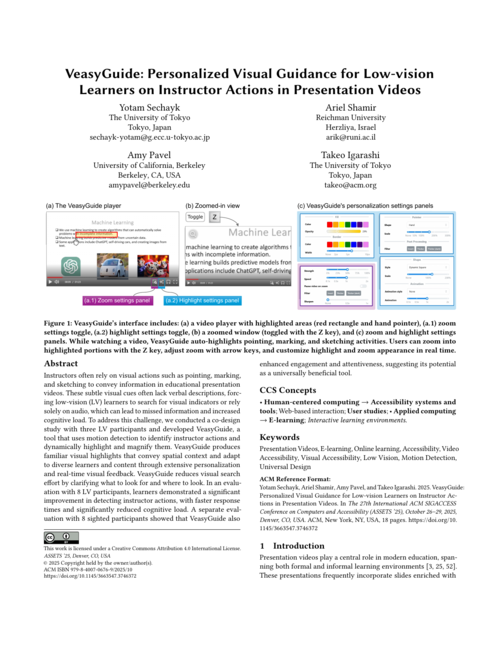
Research in visual cognition shows that the brain processes basic visual features, such as color, shape, and orientation, rapidly and in parallel. When an icon differs from its neighbors along a single, clear feature, it pops out immediately and automatically. But when telling two icons apart requires combining multiple subtle features, a slightly different shade of blue, a slightly different gradient, a slightly different stroke, the visual system has to scan each one deliberately (Treisman & Gelade, 1980). That process is effortful for any person, but for low-vision people, processing these subtle differences quickly is a significant cognitive overload (Sechayk et al., 2025).

Hint: I flipped the placement of some of the icons for the added challenge.
This is not just theoretical. Studies on mobile app icon sets show that increasing color similarity between icons measurably degrades visual search efficiency and lowers perceived usability, even among sighted users (Trapp & Wienrich, 2018). Some icon pairs (like Calendar and Docs) do not just share colors; they share a color, shape, a gradient style, and similar layout proportions. Each of these individually might be a small difference. Together, they leave almost nothing to distinguish the two at a glance. While some differences exist, they are subtle, and mostly indistinguishable at a glance for low-vision people. This issue is most noticeable with the Meet x Slides, Calendar x Docs, and Chat x Sheets pairs.
What if low-vision people designed the icons?
What if a low-vision person had designed the icons to begin with? What would I had designed? Would the icons be more accessible then?
I decided to find out, and redesigned Calendar and Docs as a small exercise. Same blue gradient family, same glassmorphic aesthetic, but with a different visual structure.
For Calendar, I made the date number significantly larger, so it fills most of the icon rather than sitting as a small detail inside it, while still using a thinner stroke style. I increased the angle of the blue calendar page, and extended the presence of the light-blue portion on the top. Instead of an hourglass design, I used a single angled page style, similar to standing desk calendars. Finally, I increased the contrast between the gradient colors (dark turned darker, light became lighter).
For Docs, I increased the size that the folder corner is taking, and replaced the abstract interior with a thick three-line layout that creates more dominance of the white color on the overall layout. I also reversed the main color gradient so that the darker portion would contrast better with the three white lines. Finally, similar to the Calendar, I increased the contrast between the gradient colors.

I did not change the color profile. I changed what those colors were doing.
The result is what I’d call an internal anchor. The large thin-lined white number (vertical presence) and the thick text lines (horizontal presence) give a low-vision user something to aim for that survives degradation. There are multiple new ways to distinguish them apart from a glance, such as the shape, the presence of white, or the way the colors lean. The interior carries more information and the exterior contains more contrasting differences. While it does not entirely simulate the perception of low-vision people, the two icons break apart perceptually even when blurred.
Is this the perfect design? No. But it’s a design that is much easier for me to recognize at a glance, and that is the point. The icons are still visually cohesive with the rest of the Google icon family, but they also have more visual information that survives degradation. And, of course, it can even be better.
The tension between aesthetic consistency and accessibility is real. But my experience here suggests it’s surmountable. Not by abandoning Google’s visual language, but by being intentional about what visual information survives at a glance.
So, what can we do?
This isn’t about Google making a careless decision. It’s that the design process for these icons almost certainly didn’t include people with low vision in any meaningful way. A compliance review would have passed. An aesthetic review would have praised the cohesion. A standard usability study might not have surfaced the problem at all. The failure mode I’m describing is invisible to the tools most design teams routinely use, and that’s exactly what makes it worth naming.
How can we improve glanceability? Involve low-vision people in the design of icons and visual interface elements from the beginning.
Research shows that in many cases accessibility improvements positively impact everyone (Sechayk et al., 2025). For instance, multi-touch screens were originally developed as an assistive device. So hiring designers with low-vision, or consulting low-vision people throughout the design process can make icon design more usable and accessible overall! Low vision is a wide spectrum of diverse conditions, and no guideline fully captures that range. The people navigating these interfaces every day know where they break.
Google’s icons are beautiful. For many of us, they’re also confusing. Those two things shouldn’t be in conflict. Designing for glanceability across the full range of human vision isn’t a constraint on good design. It’s part of what good design means.
References
- ASSETS
If you found this useful, please cite this as:
Sechayk, Yotam (Jun 2026). Google Changed Their Icons Again… And They are Still Not Accessible. https://tomfluff.github.io.
or as a BibTeX entry:
@article{sechayk2026google-changed-their-icons-again-and-they-are-still-not-accessible,
  title   = {Google Changed Their Icons Again... And They are Still Not Accessible},
  author  = {Sechayk, Yotam},
  year    = {2026},
  month   = {Jun},
  url     = {https://tomfluff.github.io/blog/2026/google-icon-redesign/}
}
Enjoy Reading This Article?
Here are some more articles you might like to read next: